Skip to content

Practical guides · Creator-tested workflows

Ship screencasts that feel premium, not rushed.

Camtasia combines multi-track editing, polished annotations, and dependable screen capture. This site collects workflows, fixes, and publishing patterns teams use to teach, sell, and support, without sacrificing clarity.

Scroll for features
Focus
Teaching & tutorials
Output
Crisp MP4 + captions
Stack
Editor + Audiate
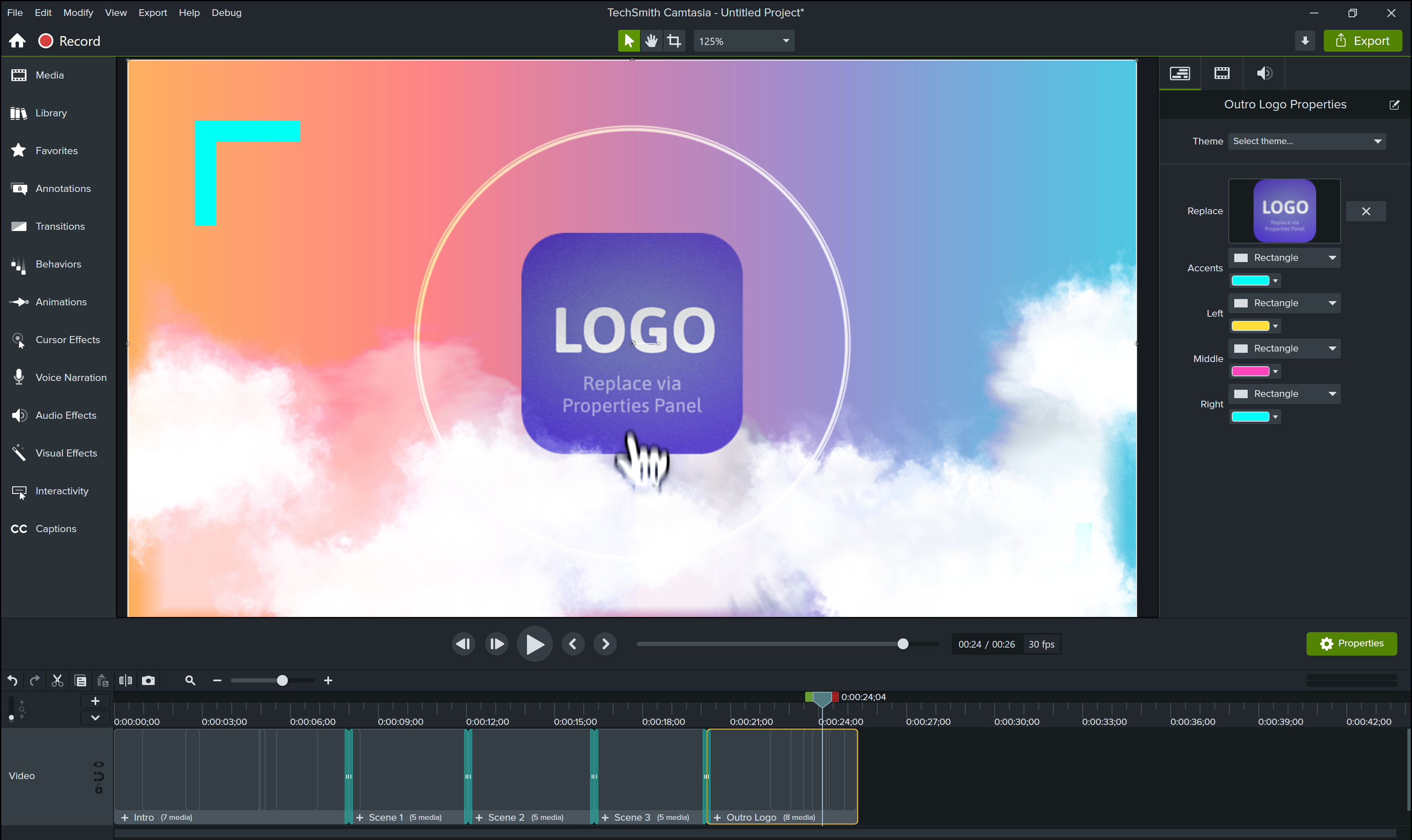
Camtasia hero preview

How to use this site

camtasia.app helps teams publish clearer tutorials with fewer export, audio, and handoff surprises.

Pick a page below and jump straight to what you need.

A focused first session in the editor

You learn Camtasia faster when you chase one deliverable end-to-end instead of clicking every menu. Block two hours, ignore perfection, and ship a thirty-second clip that includes capture, a cut, a callout, and an export you can play outside the editor.

Hour one: capture and rough cut

  1. 1 Create a project at your real delivery size; import one short screen recording you already trust.
  2. 2 Split clips on breaths and mistakes; delete dead air aggressively before you decorate.
  3. 3 Add a single arrow or highlight where a viewer’s eye should land; resist stacking effects.

Hour two: polish and proof export

  1. 4 Record or import ten seconds of narration; level it so you can understand words on laptop speakers.
  2. 5 Export with one preset you plan to reuse; open the file in your default player and full-screen it once.
  3. 6 Write down three friction notes (“could not find X”) while memory is fresh; that list becomes your next study plan.

Map menus to outcomes on the Features page, then compare positioning language with Product when you brief stakeholders.

Recording workflow article

Expensive mistakes we see in timelines

None of these are moral failures; they are predictable when deadlines compress. Naming them early helps you negotiate scope with stakeholders before the project file turns into a archaeology dig.

Recording the whole desktop “just in case”

Full-screen captures with personal bookmarks, chat notifications, and variable DPI scaling create extra blur and liability. Crop to the application window, hide unrelated monitors, and use a dedicated browser profile for demos so tabs never leak customer data.

Stacking effects before the story is locked

Animations and blur stacks make late cuts painful. Rough the narration and cuts first, then add motion where it clarifies. If a segment still feels unclear, fix the capture or script before you add more ornament.

One giant project for an entire course

Monolithic files slow previews, risk corruption, and scare collaborators. Split by module or chapter, duplicate approved intros from a template project, and relink shared assets from a read-only library folder so everyone imports the same versions.

Treating captions as the last hour of the job

Late captions force you to re-time music, callouts, and pacing. Decide caption strategy when you lock script beats, export a draft for review mid-edit, and keep a text script beside the timeline so fixes do not require re-listening to the entire wavform.

Ignoring color management on UI capture

Wide-gamut displays can make blues and reds look electric on your machine and dull after export. Agree on a reference display or sRGB preview for product UI, especially when marketing and engineering both sign off on pixels.

Shipping without a “known good” reference clip

Teams that skip a thirty-second test export discover GPU or codec issues on launch day. Keep a tiny stress-test timeline with representative effects and narration. If that clip fails, the long master will fail too.

When you are already in the hole

Duplicate the project before experiments. Bounce a lossless or high-bitrate intermediate if the timeline stutters. If reviewers disagree on scope, split deliverables: ship a minimal accurate cut now, schedule a polish pass with a clear time box.

Related reading on this site

Built for repeatable quality

The best Camtasia teams treat the editor like a system: predictable layouts, shared libraries, and export presets that match where videos ship—LMS, YouTube, help centers, and internal wikis.

Camtasia feature app list item 1

Capture with intent

Plan mouse paths, zoom beats, and pause points before you record. Fewer re-records mean tighter schedules and cleaner audio beds.

Camtasia feature app list item 2

Edit for comprehension

Use callouts sparingly, align on a grid, and favor legible type sizes. Your viewers are often on laptops at 125% scaling—design for that reality.

Camtasia camtasia product product screencast

Publish with confidence

Pair consistent exports with captions and chapter markers. Search engines and learners both reward structured, accessible video.

What high-performing teams standardize

  • 1 Intro templates with brand-safe lower-thirds and music ducks.
  • 2 Mix targets: voice ~-16 LUFS integrated for spoken tutorials (verify with your delivery spec).
  • 3 Export ladders: master mezzanine + web delivery to avoid generation loss.

Ecosystem

Audiate Assets for Camtasia Snagit

Pair Camtasia with capture tooling, audio cleanup, and asset libraries to shorten iteration loops.

Before and after you press record

Most quality problems are decided before the timeline gets busy: resolution choices, script density, and how you treat silence. The sections below collect habits we see in teams that ship weekly without burning out editors.

Pre-record checklist

  • Close noisy tabs and notifications. Screen recordings that capture popup storms age poorly and force painful re-records.
  • Write a one-page beat sheet. Section titles, on-screen actions, and where you will pause for emphasis beat a wall of prose you cannot read aloud naturally.
  • Match capture resolution to delivery. Upscaling a 720p UI capture to a 4K canvas rarely fixes softness; it spreads compression artifacts.
  • Test a 60-second sample. Export a short clip with real callouts and music to validate drivers, disk speed, and preset choices before you commit to a long session.
  • Plan captions early. If your audience needs text alternatives, decide whether you will burn in, ship sidecar files, or rely on platform captions before you finalize pacing.

Post-edit delivery habits

  • Name files for humans and analytics. Include series, episode, version, and date so CMS uploads and shared drives stay searchable six months later.
  • Chapter markers mirror the lesson outline. Align marker labels with headings on the companion page or LMS module so learners can jump without guessing.
  • Keep a silent “patch” lane. Reserve space for last-minute legal or pricing updates so you are not rebuilding the entire timeline on Friday afternoon.
  • Document your export ladder. One row per destination (YouTube, help center, LMS) with codec, bitrate, and audio loudness targets reduces back-and-forth with IT.
  • Peer review on real devices. Check laptops at 125% scaling and phones where your audience actually watches; issues caught here are cheaper than reopening a “finished” project.

Accessibility and search without the buzzwords

Captions and clarity

Accurate captions help deaf and hard-of-hearing viewers, learners in noisy offices, and anyone skimming with sound off. They also give search engines text that matches what you actually said, not just the title of the page.

Companion pages

Pair each major video with a short article or outline that repeats key steps, tool names, and troubleshooting notes. That page becomes the shareable link instead of a bare file drop.

Consistent structure

Reuse intros, lower-thirds, and segment transitions so returning viewers know where they are in the lesson. Predictability is a feature for training teams measured on completion rates.

Script, voice, and soundtrack decisions

Picture edits get the glory, but most viewers forgive a plain visual before they forgive muddy speech. The blocks below are written for teams who batch narration, buy stock music, and still need legal to sign off.

Script beats that survive recording

Write for the ear: short sentences, active verbs, and explicit numbers when you reference on-screen controls. Mark pause beats where you will zoom so your hands stay calm during fragile clicks.

  • One idea per paragraph in the teleprompter. Dense paragraphs invite rushed breaths; split them even if the doc looks longer.
  • Say the UI labels out loud once. If the product renames a button, update the script and the capture in the same pass.
  • Retake policy in writing. Two full passes max for phrasing; third passes are for pronunciation and legal words only.
  • Room tone at the head and tail. Five seconds of silence helps noise reduction plugins estimate the floor without eating consonants.

Voice chain without guesswork

Aim for stable level before you add polish. Clip gain or clip envelopes beat slamming a single limiter on the master if multiple narrators contribute across a series.

  • Distance and angle stay constant. Mark mic position on your desk so substitute narrators match timbre across episodes.
  • De-click before de-reverb. Mouth noise removal is cheaper when the waveform is not smeared by heavy ambience reduction.
  • Music under speech needs a shelf. Carve space near 2–4 kHz for consonants or duck with envelopes; avoid burying sibilance under pads.
  • Export a VO-only stem. Future translations and redubs cost less when dialogue is not baked against music.

For a deeper pass, read Voiceover that feels broadcast close.

Music and SFX clearance

Royalty-free libraries still carry license scopes. Enterprise marketing teams need perpetual use, no cap on impressions, and clarity on modification and stems.

  • Save the license PDF next to the audio file; name tracks after catalog IDs.
  • Avoid recognizable loops your competitors already use in ads.
  • Keep SFX peaks under narration; sudden hits read as mistakes on laptop speakers.

Localization head start

If translation is even a someday goal, leave space in lower-thirds, avoid burning critical text into the middle of the frame, and keep a script document that matches timecodes roughly.

  • Prefer sidecar captions over burned-in text for multi-language swaps.
  • Record UI in English even if VO is localized; duplicate projects per locale when layout shifts.
  • Document pronunciation of product names for vendors you have not met yet.

Video clips from the vault

Short H.264 clips in /vd for pacing and UI storytelling. They play inline in modern browsers; original MPEG-TS masters are still available for download if you prefer VLC or Camtasia.

Product positioning — how Camtasia frames recorder + editor value. Download .mp4 Original .ts
Cross-platform capture — parity messaging for Mac & Windows creators. Download .mp4 Original .ts
Category leadership — trust cues for enterprise evaluation. Download .mp4 Original .ts

Visual rhythm for screencasts

Viewers forgive a plain transition before they forgive confusion about where to look. The ideas below are cheap to implement in Camtasia and expensive to skip when your audience multitasks.

Zoom with purpose

Enter zooms on nouns (buttons, fields), not on mouse wander. Hold the framed shot long enough to read the label twice; snap back out before the next sentence starts.

Silence is a beat

Half-second gaps after dense instructions let viewers try the click in their own window. Remove breaths that sound nervous, keep gaps that sound confident.

Lower-thirds earn their pixels

One line for role or step number, not paragraphs. If text competes with the UI, move it to voiceover or a companion article.

Thumbnails and first frames

Pick a frame with high contrast and a readable control; avoid a fade-up from black as the poster image on platforms that auto-select.

Pacing targets that still feel human

  • Tutorial steps: introduce the goal, show the click, pause, state the expected result. Skip philosophical intros unless the audience is brand new.
  • Marketing clips: front-load the outcome in the first sentence; show the product in motion before brand montage.
  • Release notes: anchor on one visible change per beat; stack minor fixes as on-screen bullets instead of verbal laundry lists.

When motion hurts comprehension

Spinning callouts, bouncing cursors, and parallax backgrounds train viewers to watch the decoration instead of the workflow. If a student must pass a quiz, bias toward static frames and legible type over spectacle.

Pair this section with script and audio decisions so motion and narration reinforce the same beat.

Who this guidance is for

The same Camtasia project file often passes through more than one role. The sections below spell out what each stakeholder usually cares about so you can brief reviewers, avoid circular feedback, and keep exports moving.

Educators and trainers

Lesson modularity, predictable pacing, captions, and filenames that match LMS modules. Favor repeatable intros and chapter markers so students can skim or revisit a single concept without rewatching an hour-long block.

Customer education and support

Numbered on-screen steps that mirror help articles, tight zooms on fragile UI, and clear audio when tickets spike. Aim for one video per task, not one video that tries to cover every edge case.

Marketing and product marketing

Brand-safe lower-thirds, music clearance, and crisp hero moments in the first twenty seconds. Keep a “director’s cut” master plus a shorter social cut so you are not re-editing from scratch for each channel.

Internal IT and operations

Standardized export presets, storage paths, GPU/driver baselines, and naming rules for shared drives. Document where project archives live and how long raw captures are retained to stay inside compliance.

Stakeholder review pass

Run this pass before you call a video “final.” It catches most of the feedback that otherwise arrives after upload.

  • Accuracy: Do clicks match the current product? Are deprecated labels still visible anywhere on screen?
  • Audio: Is narration intelligible at laptop speakers? Does music dip enough on dense sentences?
  • Legal and brand: Are logos, fonts, and third-party footage approved? Do disclaimers match what legal expects for this audience?
  • Accessibility: Are captions synced, and do chapter titles describe the section without insider jargon?
  • Delivery: Does the exported file match the agreed resolution, codec, and loudness target for each destination row on your ladder?

When feedback should go to a blog post

If reviewers keep debating the same export error, audio chain, or template strategy, capture the decision in writing. The troubleshooting, voiceover, and libraries articles on this site are meant to hold those agreements so new editors do not reopen settled debates.

Browse written playbooks

Collaboration without losing the timeline

Camtasia projects are binary bundles of media references. The practices below reduce “which folder is truth?” arguments when more than one editor, reviewer, or agency touches the same series.

Folder skeleton everyone copies

/projects, /media/capture, /media/audio, /exports, and /archive are enough for most internal teams. Agencies add a /client-incoming drop zone that is read-only to editors.

Version suffixes humans parse

Use v02_review, v03_legal, v04_final instead of “final_final.” Date stamps help when two departments export on the same day: 2026-05-07_v04.

Read-only library drives

Shared intros, logos, and licensed music should live on a volume editors cannot accidentally overwrite. Project files reference those assets; they do not embed copies that drift.

Handoff checklist between editors

  1. 1 Zipped project plus relative media, or a documented path map if media stays on the server.
  2. 2 List of third-party fonts and plugins the next editor must install.
  3. 3 Timecode or marker note for “known issues” segments awaiting legal or product approval.
  4. 4 Last export preset that matched stakeholder sign-off, including audio loudness value.

Review comments that help

Vague feedback loops inflate billable hours. Ask reviewers to reference chapter markers or timestamps, name the on-screen element, and say whether the issue blocks release or is polish.

  • Blocking: incorrect pricing, wrong legal disclaimer, unsafe UI state.
  • Polish: font size, music fade shape, optional B-roll.
  • Nice-to-have: alternate metaphor, future enhancement, out of scope.

Template strategy lives in Templates and libraries.

Field notes from real projects

Patterns we see across customer education, internal IT, and creator businesses. Treat these as checklists—not rules—then adapt to your brand voice.

“We cut support tickets by numbering steps in the lower-third and mirroring those numbers in the help article. Camtasia made the connection obvious.”

“The win was a shared library: intros, outros, and legal disclaimers. New hires shipped acceptable first videos in week one.”

— L&D manager, healthcare IT

Problem → fix cheat sheet

  • Muddy screen text
    Zoom earlier, increase cursor contrast, and avoid heavy blur behind callouts.
  • Voice fighting music
    Sidechain music under narration or automate dips on sentence boundaries.
  • Long exports
    Close background capture tools, export to a fast SSD, and avoid unnecessary 4K if delivery is 1080p.
  • Inconsistent colors
    Calibrate displays or standardize on sRGB for UI capture to reduce surprises.
User adoption badge SourceForge recognition

Privacy-safe screen capture

Recordings are memory dumps of whatever was on screen. Treat every session like it could be replayed in a courtroom or a customer inbox. The habits below cost minutes up front and save weeks when legal or security asks questions later.

Accounts, bookmarks, and browser state

Use dedicated demo tenants with synthetic data. Log out of personal mail, turn off sync for passwords, and hide bookmark bars that leak client names. If you must show production UI, use role-based test accounts with redacted records.

PII on screen and in notifications

Blur emails, phone numbers, and ticket IDs unless legal approves exposure. Pause recording before OS notifications appear; OS-level do-not-disturb is not optional for regulated industries.

Clipboard and file paths

Pathnames in open/save dialogs can reveal usernames and internal server names. Zoom crops, replace sample paths, or stage files in neutral folders before you roll B-roll over sensitive chrome.

Retention and archive policy

Align with IT on how long raw captures live on disk, who can open project bundles, and when to delete outtakes. If you ship to the public web, assume someone will download and slow the footage frame by frame.

When in doubt, re-capture

Heavy mosaic blur draws attention to the thing you tried to hide. If a frame still feels risky after effects, schedule a fifteen-minute re-record with a clean account. That is cheaper than a reactive takedown.

Internal comms teams pair these rules with collaboration standards so contractors receive the same demo credentials and folder layout as full-time editors.

Blogs — deep dives you can reuse

Long-form playbooks with structure for search: headings, summaries, and actionable steps. Each article opens on its own page for clean indexing and sharing.

Browse all guides

Workflow

Recording workflow that survives deadlines

Shot planning, retake policy, cursor discipline, and how to batch narration for a week of releases.

Continue reading

Troubleshooting

Export errors, blurry output, and performance triage

A methodical checklist for codec mismatches, GPU bottlenecks, and scaling artifacts—without guesswork.

Continue reading

Audio

Voiceover that feels “broadcast close”

Gain staging, room tone, de-click passes, and when to round-trip to dedicated audio tools.

Continue reading

Brand systems

Templates, libraries, and consistent chaptering

How to build a “video design system” your team will actually adopt—components, naming, and QA.

Continue reading

Education

Camtasia for educators: accessible lessons at scale

Caption workflows, quiz placement, LMS metadata, and how to structure modules so students can skim—or go deep.

Continue reading

Keep tutorials honest when the product moves

UI tutorials decay faster than prose. A button rename, a relocated settings panel, or a new onboarding flow can make last quarter’s “definitive” video actively harmful if nobody owns refresh cycles.

Tie video updates to the same release calendar as your changelog. When product ships, schedule a diff pass: open the old project, step through the script, and mark timestamps that no longer match pixels. Batch those fixes instead of letting debt accumulate across twenty modules.

Read What’s New on camtasia.app

Quarterly integrity checklist

  • Verify default export presets still match IT’s allowed codecs.
  • Re-record hero clips if primary navigation changed.
  • Update companion articles and FAQ answers in the same ticket as the video.

Version the page, not just the file

Host videos on pages that show a visible “last verified” or version string. Support teams cite stable URLs; viewers need to know whether midnight still applies after a Saturday deploy.

Smoke-test on a clean machine

Editors’ laptops accumulate fonts and plugins. Before you bless a series as evergreen, play it on a stock profile that matches new hires so surprises surface before customers do.

From idea to upload: a straight path

These steps assume you already chose Camtasia as the editor. They focus on decisions that are expensive to undo once narration is recorded and callouts are stacked.

  1. 1
    Define the outcome

    One primary viewer action per video (for example: reset a password, install an agent, approve a request). If you need three outcomes, plan three short videos instead of one epic.

  2. 2
    Lock canvas and capture settings

    Match resolution to delivery, confirm cursor size, and decide whether you will show the full desktop or a cropped app window. Changing this late usually means re-capture.

  3. 3
    Record clean, then trim boldly

    Leave handles for breaths and mistakes; cut silence aggressively once the story is honest. Add callouts only where the eye would otherwise miss the click.

  4. 4
    Mix for the worst speaker your audience uses

    Laptop speakers, open offices, and cheap headsets are the baseline. If it sounds thin there, adjust EQ and ducking before you chase loudness numbers alone.

  5. 5
    Export masters first, then derivatives

    Archive a high-quality master with captions embedded or sidecars stored next to it. Generate web and LMS versions from that master instead of recompressing an already compressed file.

  6. 6
    Publish with context

    Upload alongside a short page or module description that repeats tool names, prerequisites, and known limitations. Search and support both improve when text and video tell the same story.

Terms editors reuse

Canvas
The working resolution of your project; it should match delivery when possible.
Mezzanine
A high-quality intermediate export you can re-edit or recompress without visible loss.
Burned-in captions
Text rendered into the pixels of the video; always visible, not toggled by the player.
Sidecar captions
A separate file (often .srt or .vtt) uploaded next to the video.
Integrated loudness (LUFS)
A measured average level for speech; teams pick a house target so episodes feel consistent.
Chapter marker
A navigation point learners and some players use to jump inside a single file.

If you only read three pages here

  • Resources for curated starting points and off-site references worth bookmarking.
  • Export troubleshooting when deadlines are tight and errors are vague.
  • FAQ for short answers you can paste into chat with stakeholders.

Measure whether the video actually helped

Views alone reward vanity. Useful screencasts reduce tickets, shorten onboarding, or increase completion on a course. Pick one primary metric per series before you invest in polish so stakeholders know what “success” means.

Support and success

Tag tickets that link to a specific help video. Compare volume thirty days before and after publish. If deflection is flat, the issue is usually discoverability (search, placement, or title), not production value.

Learning and enablement

Track completion, replay points, and drop-offs at chapter markers. If learners always rewind the same twenty seconds, add a callout or split the module; if they never reach the quiz, the upfront promise may be wrong.

Product and growth

For public clips, pair player analytics with downstream activation (sign-up, upgrade, feature adoption). Attribute carefully: video rarely works alone, but it should correlate with cleaner funnels when messaging matches the actual UI.

Signals that suggest a refresh

  • Sudden spike in “video outdated” comments or thumbs-down clustered after a release.
  • Average watch time falls while views stay flat (people bounce after the mismatch).
  • Search queries on your help center include phrases from an old feature name you still say aloud.

What we do not optimize for

Arbitrary duration targets, cinematic transitions that obscure UI, or keyword-stuffed titles that confuse humans. Clarity and accuracy beat algorithm hacks for products people rely on to do their jobs.

Tie refresh work back to release-aware maintenance and the channel requirements you already documented.

FAQ

Straight answers we wish were on page one of every screencast handbook—optimized for clarity and search snippets.

Start by matching canvas size to delivery resolution. Upscaled screen captures look soft—record at the target pixel density when possible. For failures, simplify the timeline (heavy annotations and stacked effects increase complexity), update GPU drivers, and export to a known-good preset. Keep a high-bitrate master for archival, then compress for web.
Treat room and mic placement as part of the product. Record with headroom, normalize sensibly, and use light noise reduction. Edit breaths and mouth clicks before music. If you have Audiate, text-based editing can accelerate repetitive cleanup—especially for long courses.
Yes. The sweet spot is modular lessons: repeatable intros, predictable pacing, and downloadable assets. Add captions early (not as an afterthought), use chapter markers, and align filenames with LMS modules for easier analytics.
Publish a descriptive title, a helpful page with transcript or detailed outline, and structured data where appropriate. Host a canonical page per topic, avoid duplicate thin pages, and use clear headings. For video platforms, keyword-rich—but human-readable—descriptions outperform keyword stuffing.
When your time has a cost. Camtasia shines at fast, professional screencasts—especially with libraries, behaviors, and screen capture integration. Free tools can work for one-off clips; paid workflows win when you ship weekly and need predictable output.

Where your exports actually land

The same MP4 file rarely satisfies every channel. Use this section to brief IT and marketing together: agree on containers, caption strategy, and who owns the companion page before you color-grade callouts.

Public video platforms

YouTube and similar hosts re-encode uploads. Favor a high-quality source, readable titles, and descriptions that repeat the verbs you demonstrate on screen. Chapters in the description or built into the file improve retention when viewers search inside long tutorials.

  • Keep end cards short; the platform already suggests the next watch.
  • Upload captions even when auto-captions exist; accuracy matters for brand trust and search.
  • Export loudness to a stable target so a playlist does not surprise viewers with volume jumps.

LMS and courseware

Learning systems care about filenames, metadata, download size, and whether captions ride alongside the video. Confirm maximum file size, allowed codecs, and whether streaming is progressive or adaptive before you promise a delivery date.

  • Align module IDs between the LMS and your archive folder so updates do not orphan old uploads.
  • Offer a PDF outline or transcript for learners who cannot enable sound in open offices.
  • Test seek behavior after upload; some hosts rewrap MP4 in ways that shift chapter markers.

Help centers and docs sites

Support videos should mirror article headings and anchor links. When a feature ships, update both the clip and the text in the same release train so customers never see contradictory numbering or outdated UI.

  • Prefer evergreen filenames; use query strings or CMS versions for breaking changes.
  • Add a visible “last verified” date when the product surface changes frequently.
  • Keep alt text and captions aligned with on-screen step numbers for ticket deflection.

Internal wikis and chat

Employees watch on laptops with aggressive compression and sometimes no headphones. Short loops, large type, and burned-in labels for critical warnings survive Slack and intranet embeds better than subtle motion.

  • Host the canonical file on durable storage; chat threads are not a media library.
  • Note whether the content is safe for external forwarding; blur sensitive URLs by default.
  • Link to the written procedure first; video is reinforcement, not the only source of truth for audits.

Independent site, practical focus

camtasia.app is educational. Licensing, pricing, and official requirements remain with your vendor or IT policy. Use the Resources page for a curated list of starting points, and keep a local runbook that records the presets your organization actually approved.

Install & set up Camtasia

Confirm compatibility, free up fast storage, and line up templates before you record. Camtasia® is a registered trademark of its respective owner.

Before you install

  • Close heavy GPU apps; reboot if you are updating drivers.
  • Reserve fast storage for project folders and cache.
  • Plan a template library location your team can share.

Tips on camtasia.app are educational. Licensing and activation details come from your software vendor or IT administrator.

Download